Widgets
Widgets turn a simple live stream into a source of context, guidance, and value. Instead of showing only what the camera sees, you can layer in information that helps viewers understand what they’re watching, what’s happening right now, or what they can do next. These overlays appear directly on the stream, making key details visible without interrupting the viewing experience.
For example, a ski resort can display slope names, difficulty levels, lift status, or current weather conditions right on a live mountain cam. A restaurant can add its daily menu, opening hours, or limited-time discounts to a street-facing camera. A marina might show tide information and wind speed, a construction site can label zones or safety notices, and a retail store can highlight promotions to passersby. Widgets let your stream communicate more than visuals alone, turning it into a practical, informative, and engaging channel for your audience.
Adding widgets to your stream
Section titled “Adding widgets to your stream”To add widgets to your stream, you can navigate to the selected webcam and add a widget to the webcam’s overlay.
To do so, you need to navigate to the selected webcam’s edit page and select the overlay tab.
There you will find a list of all the widgets that are available for your webcam and can select the ones that you want
to add to your overlay.
You also can add widgets to your stream by navigating to the widgets section on the WebcamPark platform. There you will find a list of all the widgets that are available for your user. You need to keep in mind that this is a community-driven platform, and you will see widgets created by other users as well. These widgets may be updated by their creators.
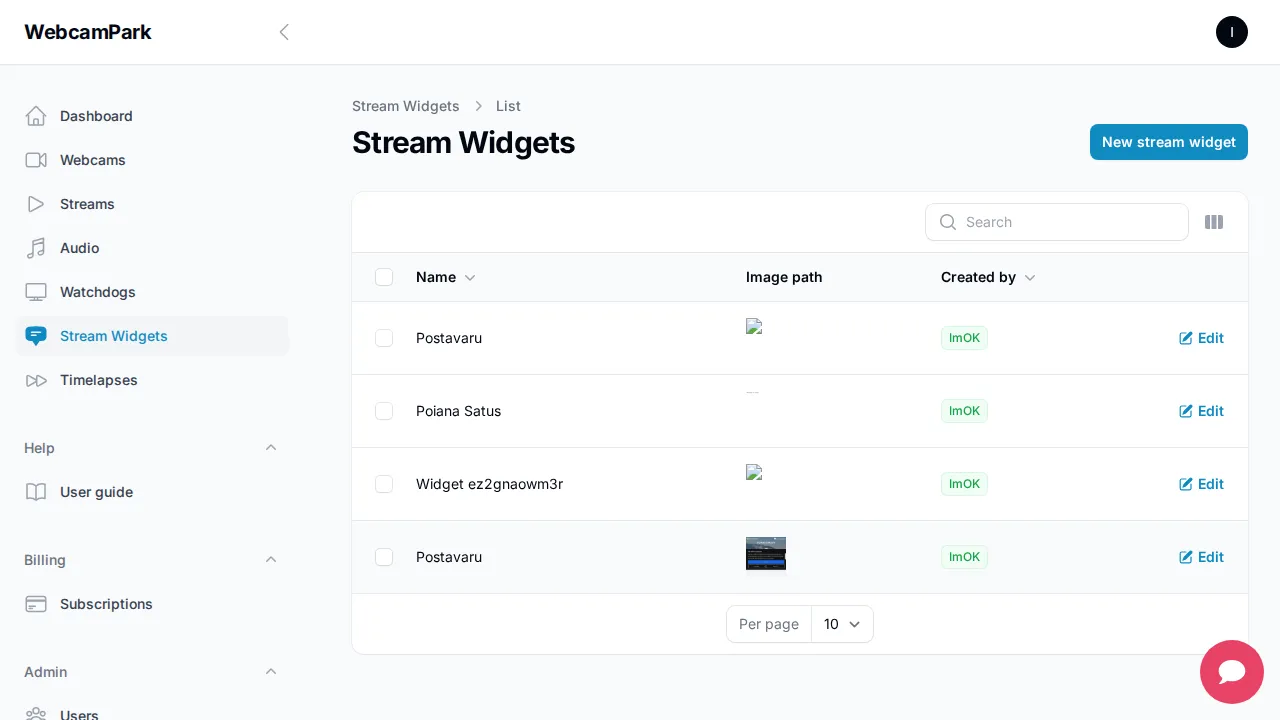
Open the selected widgets edit page and select the webcam that you want to add the widget to.
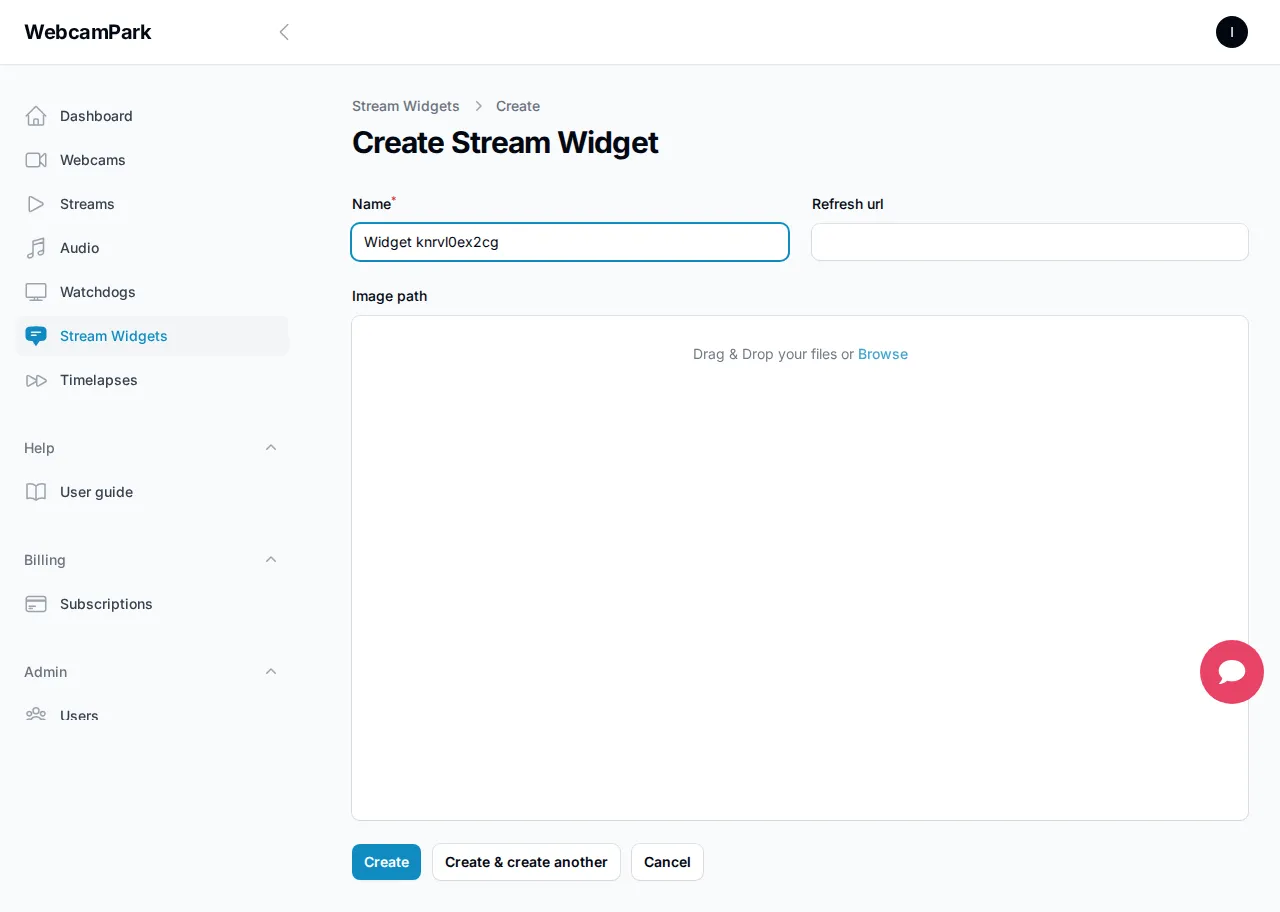
Create your own widgets
Section titled “Create your own widgets”To create your own widgets, click on the Create stream widget button on the widgets section. This will take you to the
widget creation page. There give your widget a name using the name filed. Upload an image that will be displayed on the
widget by clicking on the browse button or dragging your image into the image area.
When adding text to your widget, keep in mind that this text will be displayed in a small area of your stream and take into consideration readability.
Can I reuse widgets between streams?
Yes! You can reuse widgets between webcams. Keep in mind that the widgets are set for a webcam, so if a webcam has multiple streams, the widget will show up on all of them. Your widget can be used on webcams that you only manage, you do not need to own the webcam.
Can I add widgets to a stream that is not mine?
Yes! Your widgets are publicly available for other users to use. While others can use your widget on their stream, only you and the administrators can edit your widgets.
What if a widget is deleted?
If a widget is deleted, you created it, or somebody else did, it will be deleted from the WebcamPark platform. Altough streams that use this widget will still show them for a few days while they are gradually removed from webcams.
Are there any copyright restrictions?
WebcamPark does not have any copy right restrictions on the widgets that you can use. If you realy want you can use them outside WebcamPark. Although keep in mind if you use a widget created by someone else, then there is a possibility that they use copyrighted material.